LM Studio Guide: How to Run Local LLMs on Your PC (2026)
Step-by-step guide to running local LLMs with LM Studio: GPU & VRAM requirements, GGUF quantization (Q4 vs Q8), best models, and local OpenAI API setup.
Local AI means running a large language model on your own hardware instead of calling a cloud API. LM Studio is a desktop app that downloads and runs models on your machine, so you pay no subscription and no per-token fees.
You know that feeling when you're in the middle of debugging and your API quota runs out? Or when you're calculating whether it's worth it to upgrade your plan? Local AI sidesteps the whole subscription game.
Below is how to run capable LLMs on your own hardware with LM Studio.
Why Local AI?
Cloud AI is genuinely impressive. GPT-5.6 Sol, Claude Sonnet 5, and Gemini 3.7 Flash represent the current frontier across different kinds of work. But they come with baggage:
Privacy concerns - Every prompt you send goes to someone else's servers. Your code, your queries, your potentially sensitive business logic. For some of us, that's a hard no.
Costs add up - API costs depend on the model, input tokens, output tokens, cached tokens, and any tools or media involved. For example, GPT-5.6 Luna is priced at $0.20 per 1M input tokens and $1.20 per 1M output tokens. At 500 queries per day, assuming 1K input tokens and 1K output tokens per query, that works out to about $21 for 30 days. GPT-5.6 Sol costs more at $4 per 1M input tokens and $20 per 1M output tokens. Your actual bill can be much higher or lower depending on usage.
Offline capability - Sometimes you just don't have internet, or your connection is garbage. Local AI doesn't care about your WiFi.
Privacy is a common concern in enterprise AI adoption, but the exact percentage varies by survey and by how the question is asked. Local AI can keep prompts and documents on your machine during local inference, although model downloads, application updates, remote tools, and network features can still use the internet.
Enter LM Studio
LM Studio is a desktop application that makes running LLMs locally straightforward. Download, install, pick a model, and start chatting.
What makes it stand out:
- Cross-platform GUI - macOS, Windows, Linux
- OpenAI-compatible API - Already using OpenAI SDKs? Swap one URL and you're local
- Built-in model marketplace - Browse and download models without hunting Hugging Face manually
- Hardware-aware - Automatically detects your VRAM and suggests appropriate models
- Developer mode - Spin up a local API server in seconds
It's not open source. Free for personal use, but the source isn't available. If open source is a hard requirement, Ollama or LocalAI might be better fits. For pure usability though, LM Studio is the winner.
Getting Started
Installation
Download from lmstudio.ai - grab the installer for your OS. No Docker required, no command-line wizardry.
Once installed, you'll see a clean interface with two main modes: Chat for conversations, and Developer for API server mode.

Finding and Loading Models
Click the search icon to browse available models. Filter by size, quantization level, and purpose (chat, coding, reasoning).
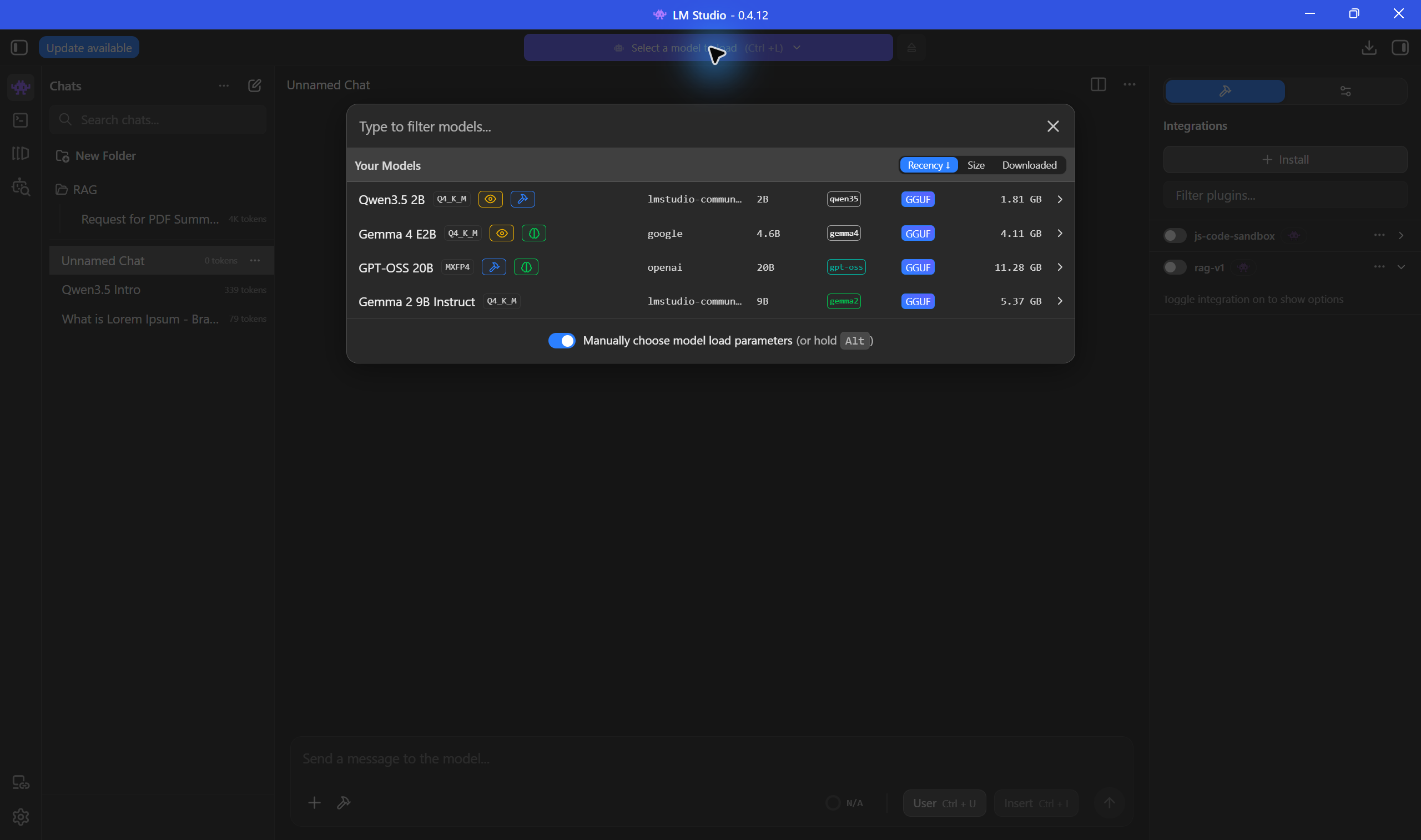
For a typical developer machine with 8-16GB VRAM, here are some sweet spots:
| Model | Size | VRAM Needed | Best For |
|---|---|---|---|
| Qwen3.5 2B | Depends on the selected quantization | Low-memory local testing | Quick tasks, low-end hardware |
| Gemma 4 E2B | Depends on the selected quantization | Low-memory local testing | Lightweight multimodal tasks |
| Gemma 4 12B | Depends on the selected quantization | Mid-range GPU with context headroom | Balanced reasoning and multimodal tasks |
| GPT-OSS 20B | Depends on the selected quantization | GPU memory varies by backend and context | Strong reasoning, more capable |
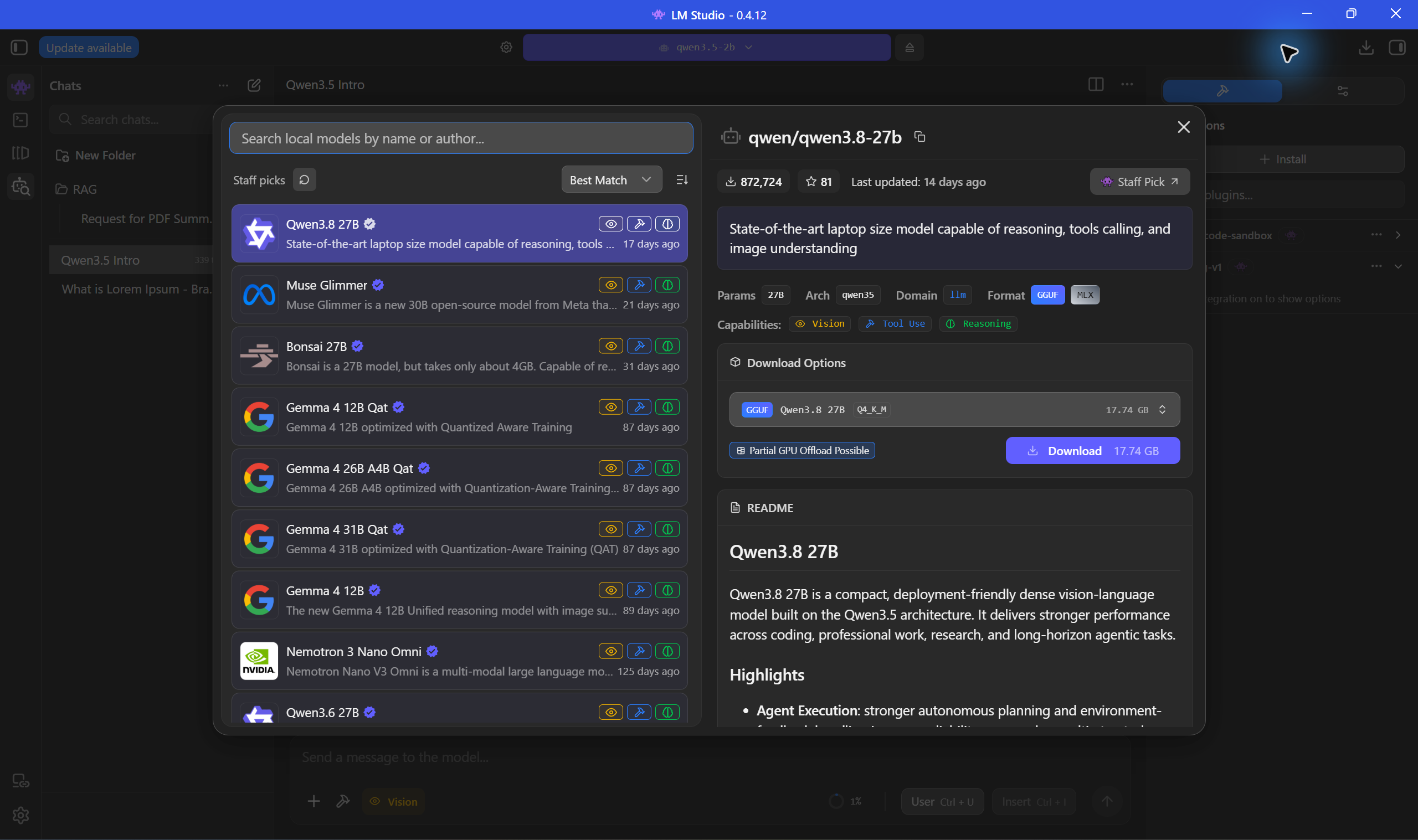
| Qwen3.8 27B | Depends on the selected quantization | High-memory GPU or partial CPU offload | Coding, vision, and agentic tasks |
The model marketplace lets you browse details, see capabilities, and download with one click.
Configuring Your Model
Once you've picked a model, you can tune several parameters:
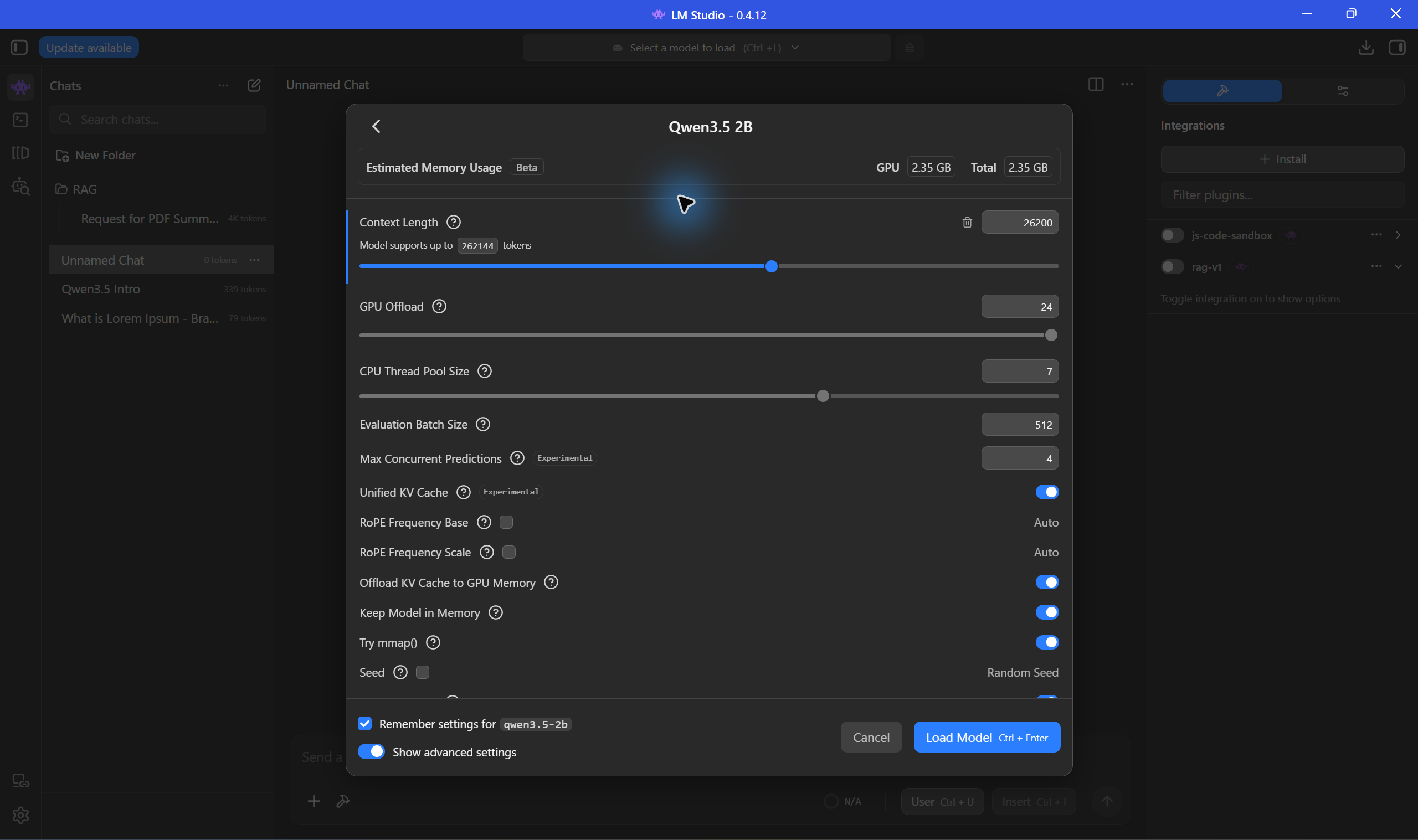
Key settings to understand:
- Context Length - How much text the model can process in a single conversation. The supported maximum is model-specific: for example, Qwen3.5-2B lists a native 262K-token context, while Gemma 4 E2B lists 128K. Larger context windows generally require more memory, especially for the KV cache.
- GPU Offload - How many model layers run on your GPU vs CPU. More layers on GPU = faster inference. Set this based on your available VRAM.
- CPU Thread Pool - LM Studio auto-detects, but you can adjust. More threads = faster CPU inference if GPU is saturated.
- Batch Size - How many tokens are processed in parallel. Higher = faster but more memory.
Chatting with Your Local Model
Once loaded, you get a clean chat interface. The model runs entirely on your machine - no network requests, no telemetry.

I tested with Qwen3.5-2B. For a 2-billion parameter model, it's surprisingly coherent. Code completions work well, general reasoning is solid, and the speed is excellent on modern hardware. It is a lightweight model, not a state-of-the-art replacement for current frontier systems.
The API Server
For developers, the built-in API server is where things get interesting. Switch to the Developer tab, and you can spin up an OpenAI-compatible REST API.
# Example: Chat with your local model using OpenAI SDK
import openai

client = openai.OpenAI(
    base_url="http://localhost:1234/v1",  # LM Studio default port
    api_key="not-needed"  # Local mode, no auth required
)

response = client.chat.completions.create(
    model="qwen3.5-2b",
    messages=[
        {"role": "system", "content": "You are a helpful assistant."},
        {"role": "user", "content": "Explain closures in JavaScript"}
    ]
)

print(response.choices[0].message.content)
This means existing tools designed for OpenAI - LangChain, LlamaIndex, Cursor, Continue.dev - all work with your local model with minimal changes. To combine that local endpoint with paid API keys behind a single fallback chain, see the 9Router setup guide.
LM Studio v0.4.0 added parallel requests with continuous batching and llmster, its non-GUI server deployment option. Anthropic-compatible endpoints were documented in v0.4.1. LM Studio later introduced Bionic as a separate agent product for coding tasks and automation.
Hardware Requirements
Running capable LLMs locally requires real hardware.
The rule of thumb: model weights at Q4_K_M use roughly 0.6 GB per billion parameters, but total memory also includes the context/KV cache, runtime workspace, and other overhead. As a reference, llama.cpp lists an 8B model at about 4.9 GiB and a 70B model at about 43.1 GiB in Q4_K_M before runtime requirements are added.
A 7B or 8B model can fit on an 8 GB GPU with a modest context. Larger contexts, vision encoders, multiple concurrent requests, or higher-quality quantization can require substantially more memory. A 70B Q4 model typically needs a high-memory GPU such as an 80 GB accelerator, depending on the configuration.
Hardware breakdown:
| Hardware | Models You Can Run |
|---|---|
| 8 GB VRAM (RTX 3070/4060) | 7B–8B Q4 with a modest context |
| 12 GB VRAM (RTX 4070) | 9B–13B Q4, depending on context and backend |
| 16 GB VRAM (RTX 4080) | Around 20B Q4 may require careful settings or partial offload |
| 24 GB VRAM (RTX 4090) | Around 27B–30B Q4, depending on context and backend |
| 80 GB VRAM (A100) | 70B Q4 is feasible with configuration headroom |
On a budget? Qwen3.5-2B is designed for lightweight local use, but the required memory still depends on the backend, context length, and whether vision support is enabled. It is not comparable to current frontier cloud models, but it can be useful for code completion, quick refactoring, and simple queries.
Comparing the Options
Common choices for local LLM hosting include:
| Tool | Best For | License | GUI | API |
|---|---|---|---|---|
| LM Studio | Non-developers, quick setup, model exploration | Proprietary (free for personal use) | Yes | OpenAI-compatible |
| Ollama | Developers, production, CLI-first workflows | MIT (open source) | CLI-first | OpenAI-compatible |
| LocalAI | Linux servers, maximum API compatibility | MIT (open source) | No | OpenAI + more |
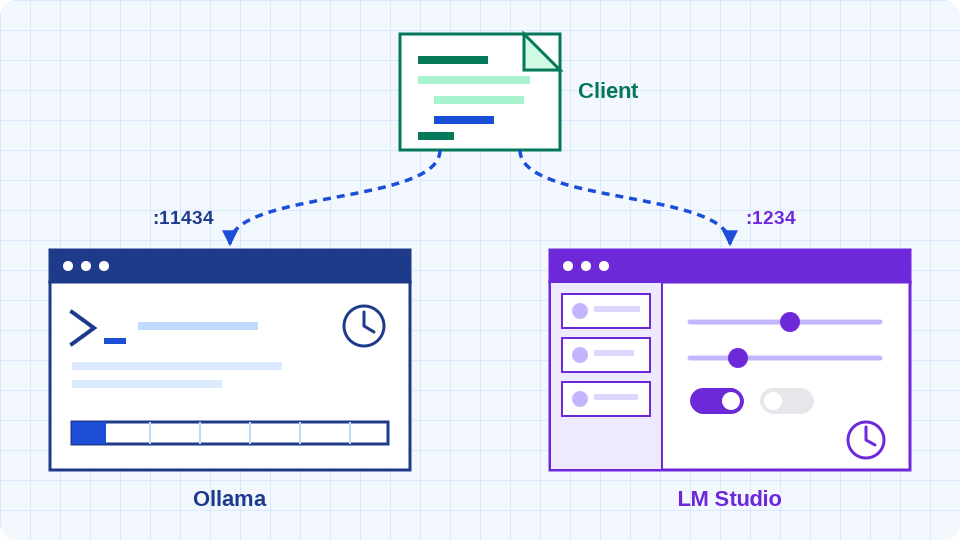
I use LM Studio for experimentation and quick tasks, Ollama for production CLI stuff, and LocalAI when I need something running on a Linux server. For a closer look at the two most common runners, see Ollama vs LM Studio.
When Local AI Makes Sense
Local isn't always the answer. Run local when privacy is paramount (client code, proprietary algorithms, health/financial data), you need offline capability, or you're experimenting with different models frequently. Whether local is cheaper depends on your hardware, electricity, usage, and the cloud model you would otherwise use.
Don't run local when you need the strongest frontier-model performance for a specific task, you have limited hardware, you need a managed multimodal service, or you're just trying AI out casually. The comparison depends on the exact models and benchmark, so avoid treating one model generation as permanently ahead.
My Honest Take
After using LM Studio for a few weeks, local AI has come far. Two years ago, running anything useful locally required serious sysadmin skills. Now? Download, click, chat.
Is it perfect? No. The proprietary nature of LM Studio is a legitimate concern for some. For production workloads, Ollama's open-source nature and wider ecosystem support have advantages.
But for the developer who wants privacy, offline capability, and the flexibility to experiment with dozens of models without racking up API bills, this works.
Starting point: Download LM Studio, grab Qwen3.5-2B or Gemma 4 E2B, and play with it. See how it feels for your use case.
Notes
- Model quality varies widely. Not all 7B models are created equal. Qwen and Llama derivatives generally outperform similar-sized alternatives.
- Quantization costs quality. Q4_K_M is a good balance, but you lose some precision vs full precision. For most tasks it's imperceptible, but for complex reasoning, you might notice.
- VRAM matters more than system RAM. If you have to choose, go with more VRAM.
- Keep models on fast storage. SSD loads models faster than HDD.
Sources
- LM Studio Developer Docs - Official documentation for LM Studio API and features
- OpenAI Model Catalog - Model overview and token pricing
- Claude Sonnet 5 Announcement - Announcement and pricing details from Anthropic
- Google Gemma Documentation - Specifications and capabilities for Gemma models
- Qwen3.5-2B Model Card - Parameters and context length on Hugging Face
- llama.cpp Quantization Reference - Q4_K_M quantization specs and memory guidelines
- Local AI vs Cloud AI: Cost, Privacy and Control - Cost comparison and privacy trade-off analysis
- Ollama vs LM Studio vs LocalAI - Comprehensive comparison of local LLM tools