
Ollama vs LM Studio: Choosing a Local LLM Runner (2026)
Ollama and LM Studio both serve local models over an OpenAI-style API. Compare ports, context length, unloading, model formats and licenses to pick one.
Ollama and LM Studio do the same job. Each loads an open-weight model onto your machine and serves it over an OpenAI-style HTTP API. Most comparisons stop at "CLI versus GUI", which hides the details that break setups later: a default context window far below what agents need, a model that unloads minutes after your last request, a license that decides where you can use the tool.
This post compares the two on those operating details, using each project's own documentation, and ends with a way to choose. The LM Studio guide already covers VRAM sizing and GGUF quantization, so those topics are skipped here.
One Client Talks to Both
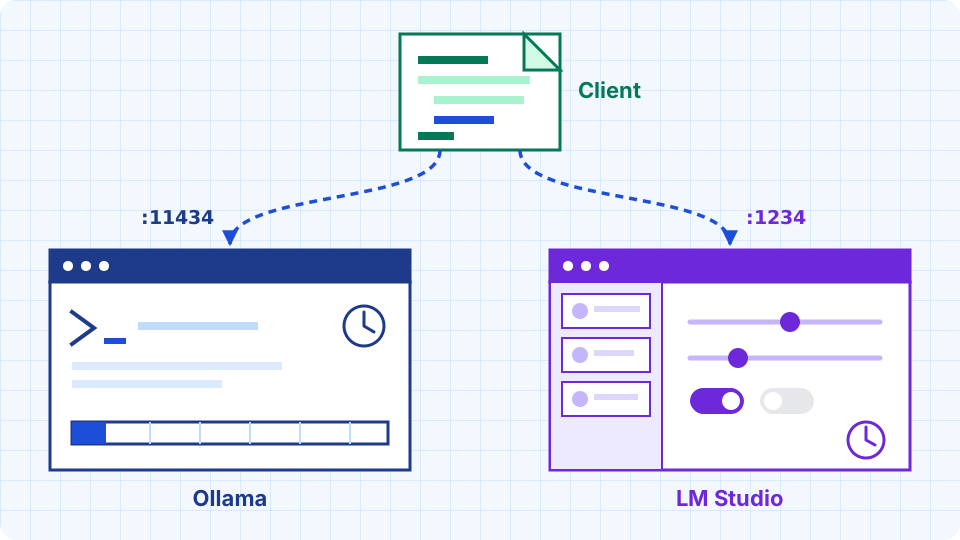
Both servers speak the OpenAI API, so a single script can target either by changing two values. Ollama listens on http://localhost:11434/v1/. The LM Studio documentation examples use http://localhost:1234/v1.
# compare.py
from openai import OpenAI

TARGETS = {
    "ollama": ("http://localhost:11434/v1/", "qwen3:0.6b"),
    "lmstudio": ("http://localhost:1234/v1", "qwen/qwen3-8b"),
}

base_url, model = TARGETS["ollama"]  # switch the key to test LM Studio
client = OpenAI(base_url=base_url, api_key="local")  # placeholder value

reply = client.chat.completions.create(
    model=model,
    messages=[{"role": "user", "content": "Say this is a test"}],
)
print(reply.choices[0].message.content)
The Ollama docs say the client requires an API key value but Ollama ignores it. LM Studio's compatibility page does not mention keys, and its server settings include an optional Require Authentication switch, so a placeholder works until you turn that on.
I ran this script on Windows against Ollama 0.40.15 and LM Studio 0.4.28, and both servers answered with the placeholder key.
The model names differ. Ollama uses library tags such as qwen3:0.6b, fetched with ollama pull qwen3:0.6b. LM Studio uses the identifier shown in the app and in lms ls, such as qwen/qwen3-8b, and downloads through the in-app search or lms get.
Endpoint coverage is close. Both list chat completions, completions, embeddings, models and responses. The models endpoint is a quick way to check which server is answering and which model names it accepts:
curl http://localhost:11434/v1/models   # Ollama
curl http://localhost:1234/v1/models    # LM Studio
Ollama lists the models you have pulled. LM Studio lists every model it has downloaded, loaded or not. Use the names it returns as the model value in the script above. Ollama's /v1/responses arrived in v0.13.3 and is stateless: previous_response_id and conversation are not supported.
Differences You Meet After Install
| Ollama | LM Studio | |
|---|---|---|
| Interface | Desktop app and CLI (ollama run, ollama serve) |
Desktop app with in-app model search; lms CLI ships with it |
| Model sources | Ollama library, plus GGUF or safetensors imported through a Modelfile |
In-app search and lms get; GGUF on all platforms, MLX on Apple Silicon |
| Default address | 127.0.0.1:11434 |
Docs examples use localhost:1234 |
| Idle unload | 5 minutes, set with OLLAMA_KEEP_ALIVE |
60-minute idle TTL for JIT-loaded models; none for models loaded with lms load |
| LAN access | OLLAMA_HOST=0.0.0.0:11434 |
"Serve on Local Network" toggle, with optional Require Authentication |
| Headless | ollama serve |
Headless version called llmster, managed with lms daemon |
| License | MIT | App under its own terms, free for personal and work use |
Bringing each server up from a terminal looks like this:
# Ollama (skip serve if the desktop app is already running)
ollama pull qwen3:0.6b
ollama serve

# LM Studio (launch the app once before using lms)
lms load qwen/qwen3-8b --context-length=32768
lms server start
lms ps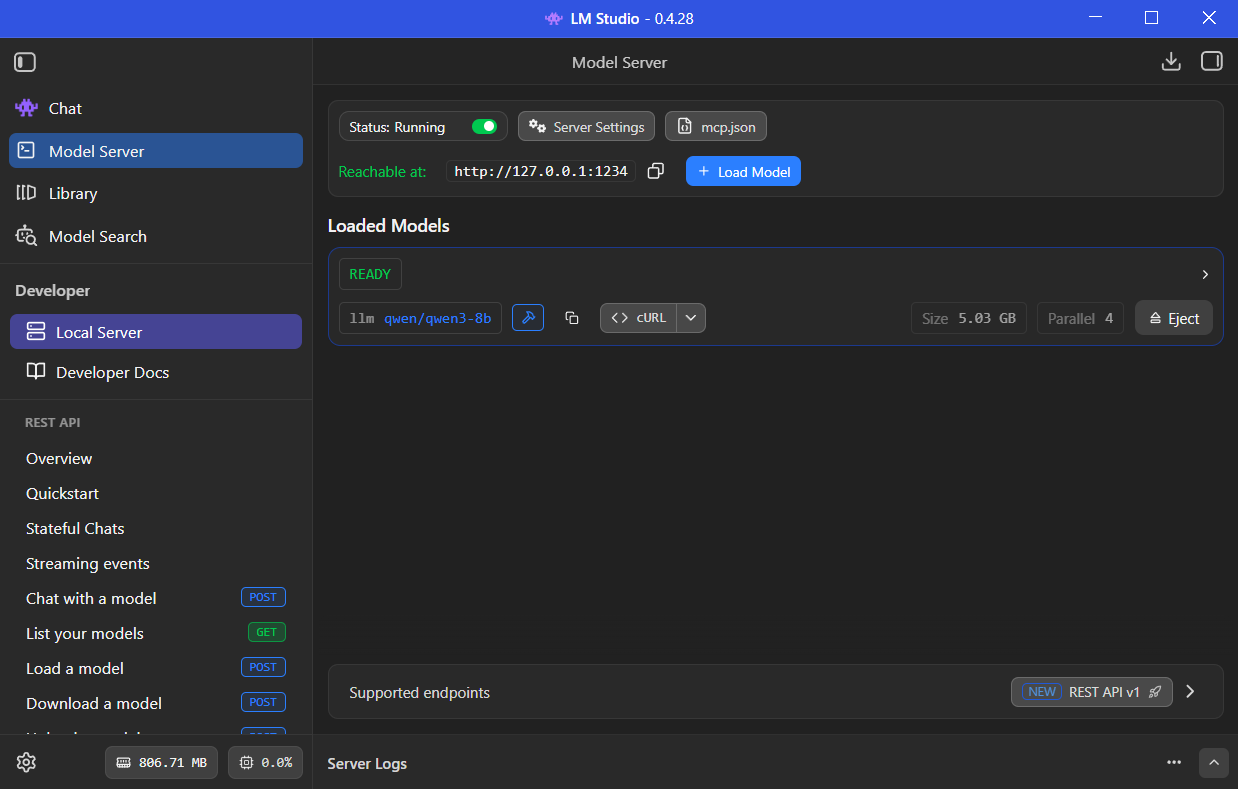
LM Studio's Model Server tab after lms server start, with qwen/qwen3-8b loaded.
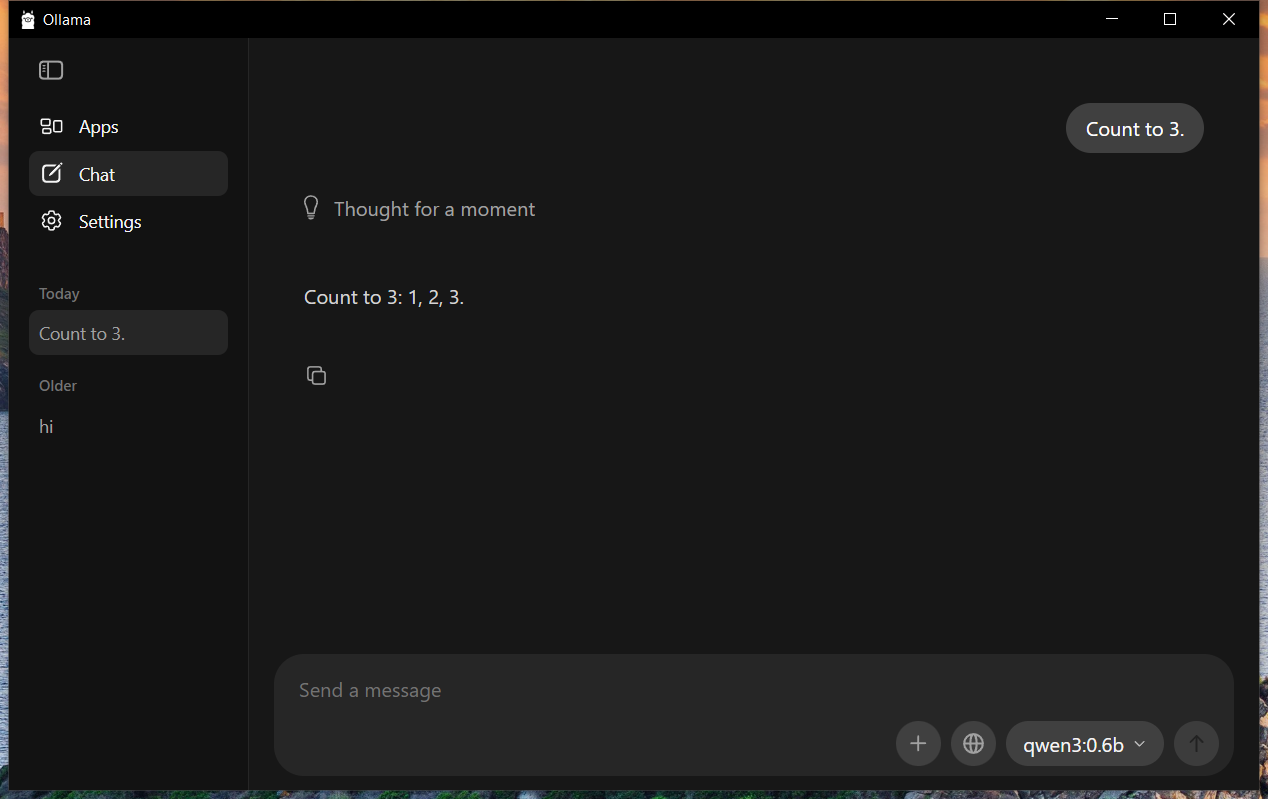
The Ollama desktop app answering with qwen3:0.6b.
The idle timers decide whether your first request after a break takes seconds or a full model load. LM Studio's Auto-Evict setting, on by default, also keeps at most one JIT-loaded model in memory, so alternating between two models reloads each time.
The Context Length Default
Ollama's default context depends on VRAM: 4k tokens under 24 GiB, 32k from 24 to 48 GiB, 256k at 48 GiB or more. Its docs recommend at least 64000 tokens for agents, web search and coding tools. On a typical consumer GPU, an agent prompt can therefore exceed the default window before you notice anything wrong.
Set it when starting the server and confirm with ollama ps, whose CONTEXT column shows the allocated size:
OLLAMA_CONTEXT_LENGTH=64000 ollama serve
ollama ps
The OpenAI-compatible endpoint cannot set context per request, so the server-level setting is the route. In the Ollama desktop app the same setting is a slider in Settings. LM Studio sets it at load time, for example lms load <model> --context-length=32768. Memory grows with context in both tools, so check your VRAM headroom before raising it.
Installing Ollama on Another Drive
On Windows, Ollama installs into your user profile by default and keeps models in %HOMEPATH%\.ollama. Both locations can move, and they are separate settings: the installer has a flag for the program, and an environment variable controls the models. A small C: drive needs both changes.
Start the installer with the /DIR flag:
.\OllamaSetup.exe /DIR="D:\Apps\ollama"The docs ask for at least 4 GB of free space for the binary install, plus room for models, which can reach tens or hundreds of GB.
The desktop app can change the model folder without environment variables: open Settings, find Model location, and use Browse to pick a folder.
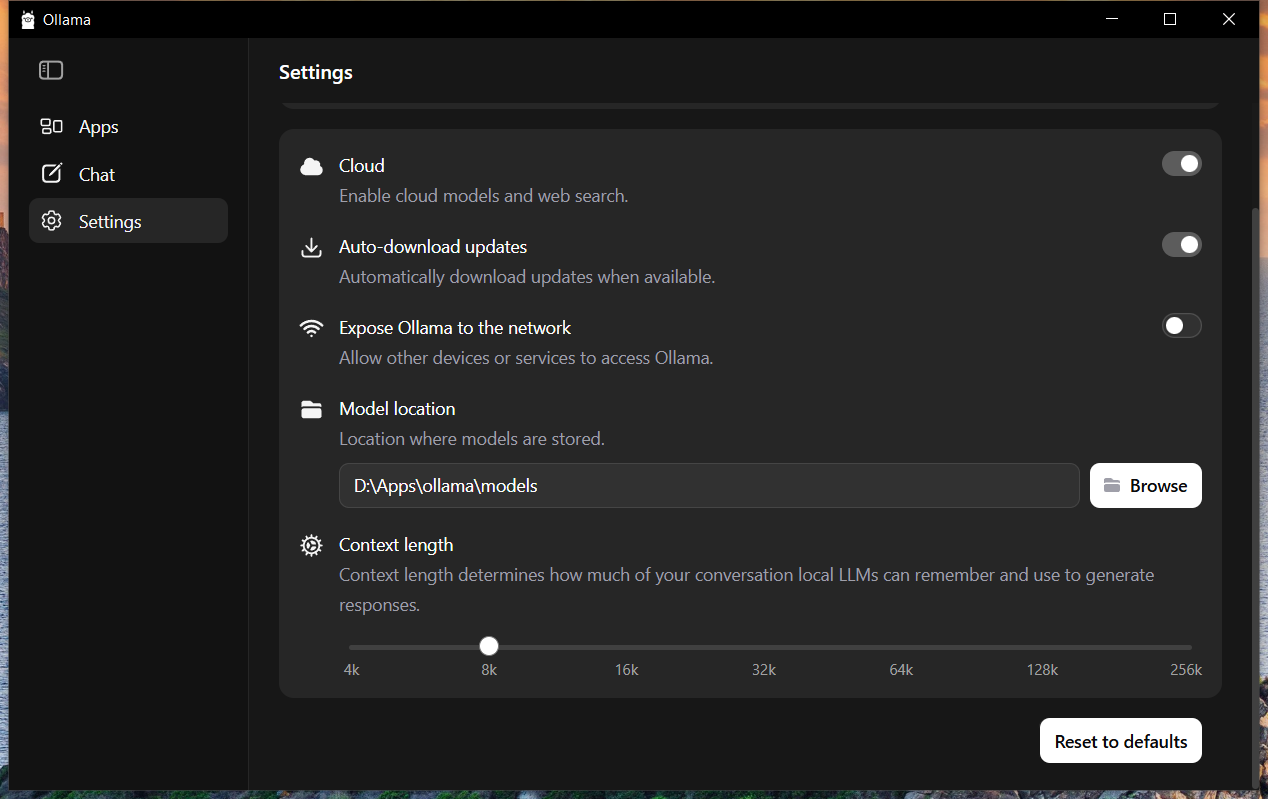
Ollama's Settings page: model location, network exposure and context length.
To set it through the environment instead, add a user environment variable named OLLAMA_MODELS. Open Settings on Windows 11 or Control Panel on Windows 10, search for environment variables, choose "Edit environment variables for your account", and set OLLAMA_MODELS to a folder such as D:\OllamaModels. Quit Ollama from the tray and relaunch it from the Start menu, or open a new terminal. From PowerShell the same change is one command:
setx OLLAMA_MODELS "D:\OllamaModels"Pull a small model afterwards and check that its files appear in the new folder.
On Linux the FAQ documents the same variable and notes that the ollama user needs read and write access to the folder. With systemd, set it through an override:
sudo systemctl edit ollama
# in the editor, add:
# [Service]
# Environment="OLLAMA_MODELS=/data/ollama/models"
sudo systemctl daemon-reload
sudo systemctl restart ollama
Where Each One Bites
Ollama's OpenAI layer is a subset. Chat completions do not support tool_choice or logprobs, and image inputs work only as base64, not as URLs. A client library that sends tool_choice to force a function call will not get that behavior from Ollama's compatibility endpoint.
LM Studio's lms command needs the app to have run at least once before it works, which complicates a clean server install. Its headless version, llmster, is documented across several pages rather than one.
Ollama imports your own weights with a one-line Modelfile (FROM /path/to/file.gguf) followed by ollama create my-model. It does not quantize during import, so quantize GGUF files beforehand with a tool such as llama.cpp's llama-quantize.
Choosing
Pick LM Studio when you want to browse models, adjust load settings with controls, or use MLX models on an Apple Silicon Mac. It suits one person exploring on a workstation.
Pick Ollama when the runner is part of a script, a container or a service. The MIT license, the ollama/ollama image on Docker Hub and plain environment variables make it easier to automate. Tools such as Hermes Agent accept any OpenAI-compatible endpoint, so either server works behind them.
Running both is also fine, since the default ports do not collide. A gateway such as 9Router can sit in front of both local servers and your paid keys, as described in the 9Router setup guide.
Sources
- Ollama OpenAI compatibility - Endpoints, base URL, API key behavior and unsupported fields.
- Ollama quickstart - Install,
ollama run,ollama serve. - Ollama context length - VRAM-based defaults and
OLLAMA_CONTEXT_LENGTH. - Ollama import - GGUF and safetensors import through a Modelfile.
- Ollama FAQ - Keep-alive, bind address and
OLLAMA_HOST. - Ollama repository - MIT license, platforms, Docker image.
- LM Studio OpenAI compatibility - Base URL examples and supported endpoints.
- LM Studio CLI -
lmscommands and daemon. - LM Studio app docs - Platforms, GGUF and MLX, llmster.
- LM Studio server settings - Authentication, local network, JIT options.
- LM Studio TTL and Auto-Evict - JIT loading and idle TTL defaults.
- LM Studio is free for use at work - Licensing announcement from the vendor.

